SQL Import
Upload a MySQL dump and turn every table into a model with its own endpoints — foreign keys become relations automatically.
What is SQL Import?
SQL Import reads a .sql file containing CREATE TABLE and
INSERT statements (for example a mysqldump export) and recreates your
database in SearchAPI. For each table it creates a new model, a set of endpoints and an
Elasticsearch index, then writes the table's rows into that index. Relations between tables are
taken from the foreign keys in the schema.
Unlike CSV / XLSX import, which handles one file and one model at a time, SQL Import handles many related tables in a single job.
File Requirements
-
A single
.sqlfile, up to 100 MB. -
MySQL syntax, as produced by
mysqldump:CREATE TABLEfor the schema,ALTER TABLEfor foreign keys added separately, andINSERTfor the data. -
Every model is created by the import itself — tables are never linked to models that already exist in your account.
Uploading the File
Navigate to Data Import in the sidebar and click + New SQL Import.
Select the target API and API Version, choose your
.sql file and click Analyze SQL file. The file is parsed and you are
taken to the import's review page. Nothing is created yet at this point.
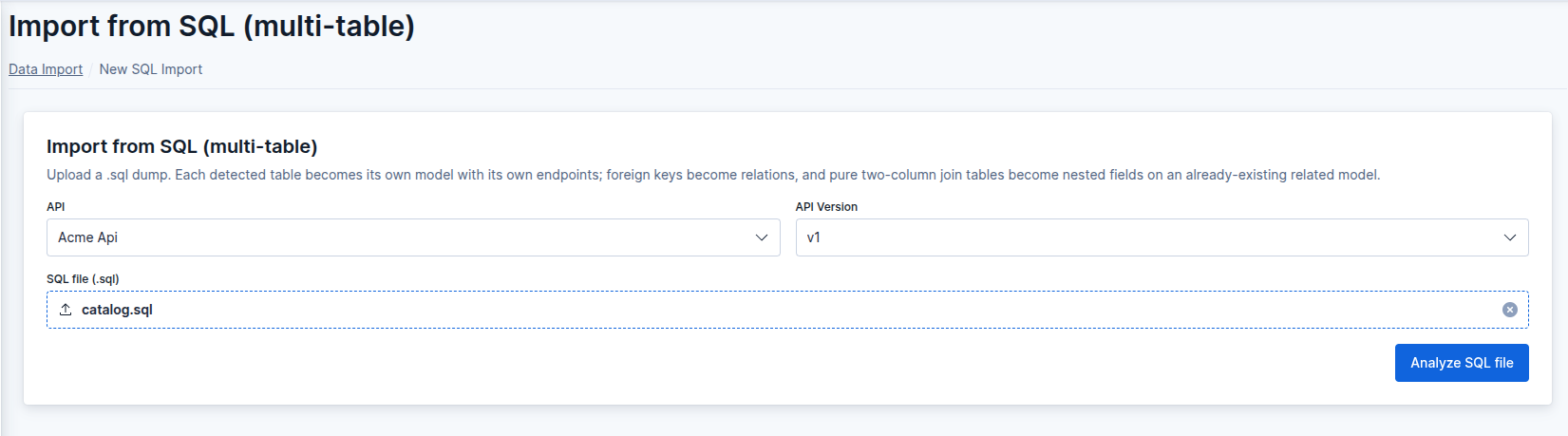 New SQL Import — select API, version and file
Drafts
Every change you make on the review page is saved automatically as a draft. Imports you started but haven't submitted appear under Continue a draft import on the upload page, where you can resume or remove them.
Reviewing Tables
The review page lists every table found in the file on the left, with its role:
-
real — a regular table. It becomes its own model with endpoints.
-
pivot — a many-to-many join table. It does not become a model; instead it adds a
nestedfield to one of the two tables it connects (see Pivot Tables).
A red alert icon next to a table means it has an issue that blocks the import; hover over it to see the details. A yellow icon is a non-blocking warning. Click a table to open its settings.
Use the trash icon to leave a table out of the import, and the + icon to add it back. A table cannot be removed while another table still references it.
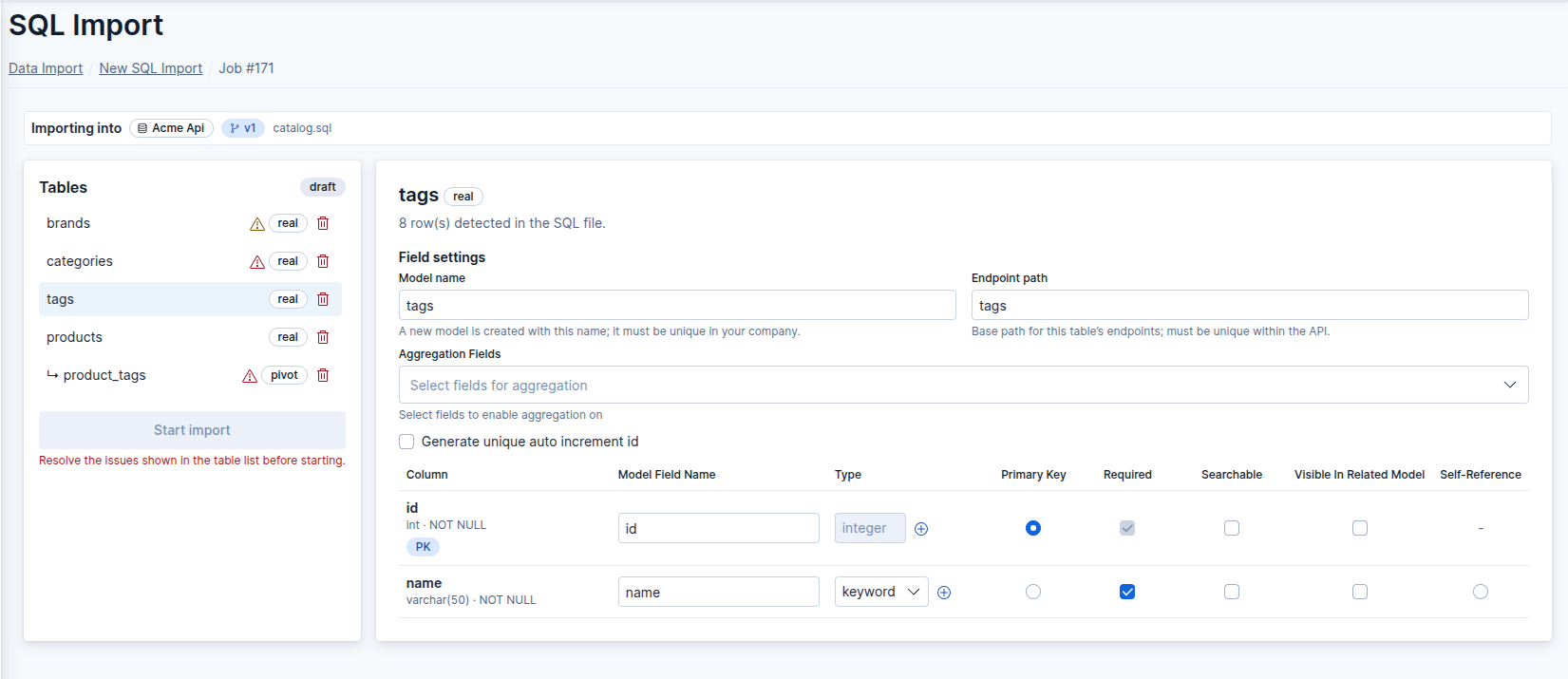 Review page — table list and field settings
Table Settings
For each real table you can set:
-
Model name — defaults to the table name. Must be unique in your company and follow the model name rules.
-
Endpoint path — defaults to the model name. Must be unique within the API.
-
Aggregation Fields — fields to enable for aggregation on the table's
GETlist endpoint (see Endpoints). -
Primary key — taken from the table's
PRIMARY KEYwhen it is a single column. Otherwise pick a column in the field table, or check Generate unique auto increment id and enter a name for a new id column that doesn't already exist in the table. Relation columns cannot be the primary key.
Field Settings
The field table shows one row per column with its SQL type. For each column you can set:
-
Model Field Name — defaults to the column name as is. It must follow the field name rules and be unique within the table, so rename columns that don't (for example ones with uppercase letters).
-
Type — detected from the SQL type (see the table below) and can be changed. Pick
datetimefor adatefield that stores both date and time. -
Primary Key, Required, Searchable and Visible In Related Model — same meaning as on the Models page. Required defaults to on for
NOT NULLcolumns. Searchable and Visible In Related Model are not available on relation columns. -
Self-Reference — marks the column that points to a parent row of the same table (see Self-Referencing Tables).
Type Mapping
| SQL type | Field type |
|---|---|
INT, INTEGER, SMALLINT, MEDIUMINT, TINYINT | integer |
BIGINT, INT UNSIGNED | long |
DECIMAL, NUMERIC, FLOAT, DOUBLE, REAL | float |
TINYINT(1), BOOLEAN, BOOL | boolean |
DATE | date |
DATETIME, TIMESTAMP | date with date and time |
VARCHAR, CHAR, ENUM, UUID, TIME | keyword |
TEXT, TINYTEXT, MEDIUMTEXT, LONGTEXT, JSON and anything else | text |
The primary key keeps its type when it is integer or long; any other type is
stored as keyword.
Relations
A column with a FOREIGN KEY to another table in the file becomes an
object field that embeds the related row — the related table's primary key plus its
fields marked Visible In Related Model. For example, a books table
with author_id referencing authors produces:
{
  "id": 7,
  "title": "Dune",
  "author_id": {
    "id": 3,
    "name": "Frank Herbert"
  }
}author_id no longer holds an id — it holds the whole embedded author object, so a name like
author_id.name is misleading in API responses and filters. Set a clearer name in
Model Field Name (e.g. author). This is only possible before the import
starts: the import creates endpoints, and a model connected to an endpoint can no longer be edited.
If no field of the related table is marked visible, only its primary key is embedded — the table list shows a warning in that case.
Manual Relations
If your schema has no FOREIGN KEY for a column that holds another table's id, click
the + icon next to its type and select the target table. The column type must be
compatible with the target's primary key: integer / long with each other,
or keyword with keyword.
Relation Rules
-
The related table must have a primary key and 10 000 rows or fewer.
-
A foreign key to a table that is not in the file, or a foreign key spanning several columns, is imported as a plain field without a relation.
-
Tables are imported in dependency order — a related table is always written before the tables that reference it. Tables that reference each other in a circle cannot be imported.
Pivot Tables
A table is treated as a pivot when it only links two other tables: it has exactly two foreign
key columns pointing to two different tables and no other data columns. A single-column
primary key such as id, created_at, updated_at,
deleted_at and ON UPDATE CURRENT_TIMESTAMP columns are allowed.
Select the pivot table and choose in Add nested field to which side gets the
relation. That table receives a nested array field with the related rows of the other
side; the other side stays a plain model. For a book_tags pivot between
books and tags, choosing books produces:
{
  "id": 7,
  "title": "Dune",
  "tags": [
    { "id": 1, "name": "sci-fi" },
    { "id": 4, "name": "classic" }
  ]
}
Choosing a side is required. The nested field is always named after the other table and cannot be renamed. The other side must also be imported in the same job and have 10 000 rows or fewer. The chosen side must keep a primary key column from the table — if it uses Generate unique auto increment id, the nested field is not created.
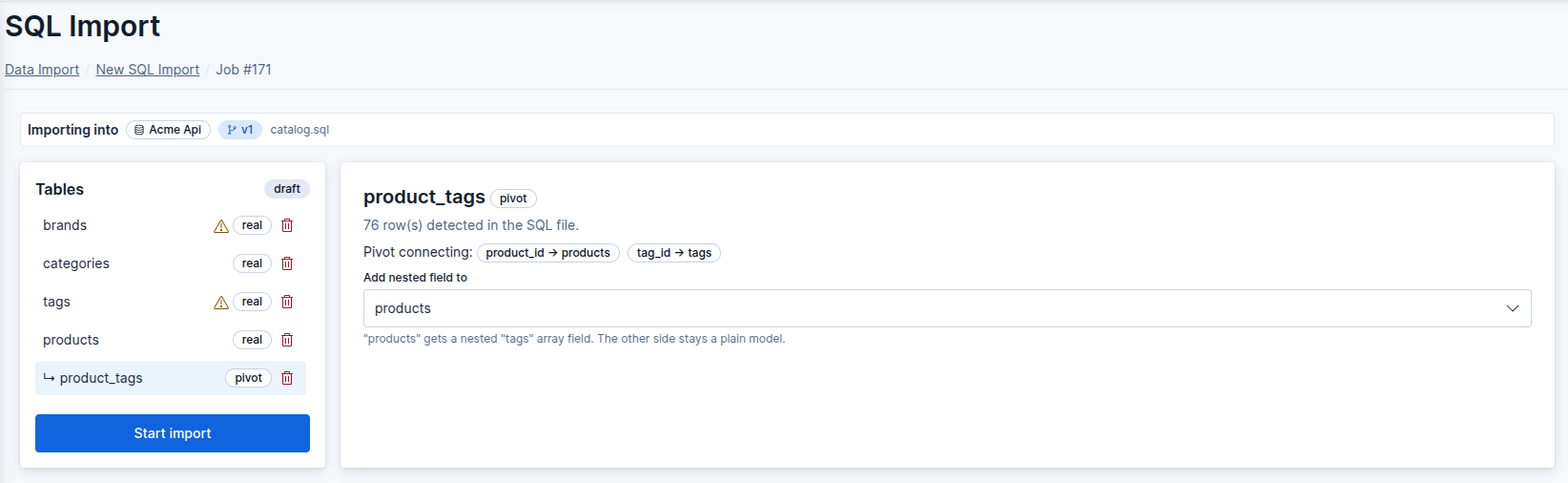 Pivot table — choosing the side in Add nested field to
Self-Referencing Tables
A column that points to another row of the same table (such as parent_id in a
categories table) can turn the model into a tree. Columns with such a foreign key are
marked self-ref candidate; if there is only one, it is selected automatically. You
can also select any other column in the Self-Reference column of the field table,
except the primary key and relation columns.
-
The selected column is always stored as
parent_id. -
Its type must be compatible with the table's primary key type:
integer/longwith each other, orkeywordwithkeyword. -
At least one field must be marked Visible In Related Model.
-
No other field may be named
parent_id,ancestorsordepth— these names are reserved for the tree.
The resulting model works like any other self-referencing model — see
Models for how ancestors and
depth are built.
Starting the Import
Click Start import once no table shows a red alert. Each table then gets its own model, endpoints and Elasticsearch index, and its rows are written in the background. The created endpoints are:
-
GETlist andPOSTon/{endpoint-path} -
GETby id,PUTandDELETEon/{endpoint-path}/{id}
The new endpoints have no API keys yet — assign keys and deploy the version as usual (see API Keys and API Versioning).
Tracking Progress
After starting, the review page refreshes every 3 seconds and shows a status for each table. Selecting a table shows how many rows were written or failed, and a View this table's import job link to its job detail page with the row-level errors. Each table's job also appears in the Data Import job list.
If a table cannot be imported, the tables that depend on it are skipped, and the reason is shown when you select them.