Data Export
Export your model data as CSV, JSON, or SQL files. Exports are processed as background jobs — you can monitor progress and download the file once it is ready.
Overview
Export jobs let you pull all of your indexed records out of Elasticsearch and save them as a downloadable file. All model columns are included in the output.
- CSV, JSON, and SQL output formats
- Asynchronous — the UI stays responsive while the file is being built
- Output is packaged as a ZIP archive for download
Starting an Export
Exports are started from the Data UI page. Open Data UI, select the model you want to export, then click the Export button in the toolbar and choose a format.
Open Data UI and set up your view
Select the API version and model you want to export. All records in the index will be exported — the export always includes the full dataset and all model columns, regardless of any active search, hidden columns or sorting in the grid. Records are ordered by primary key.
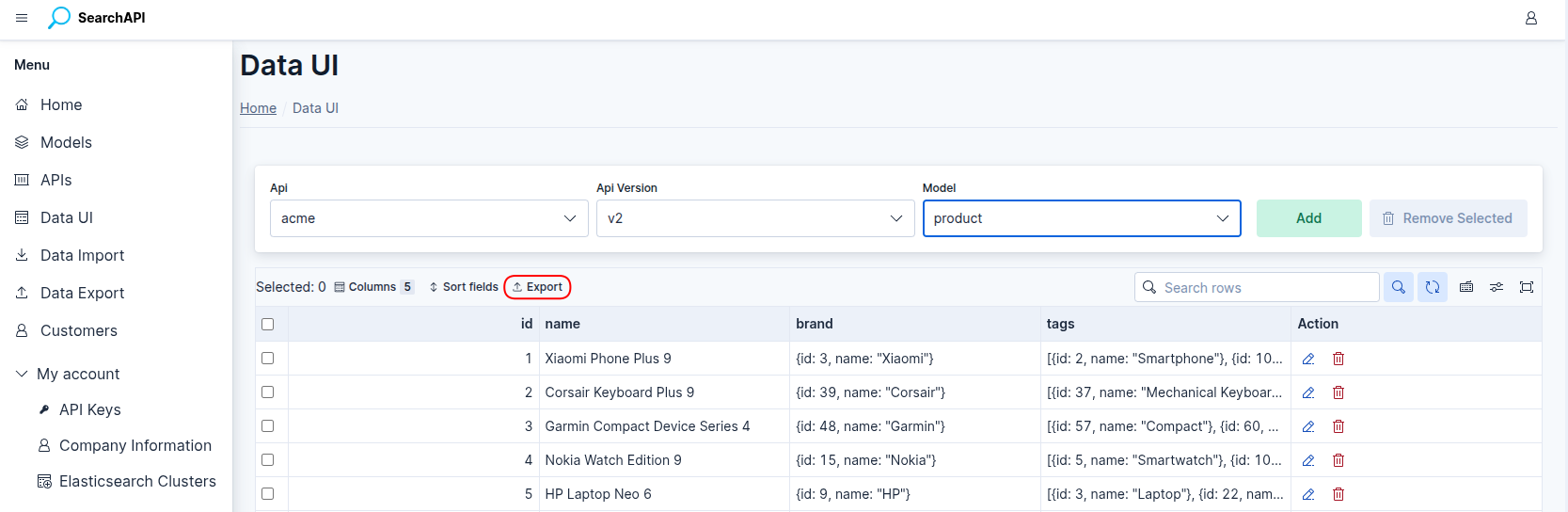 Export button in the Data UI toolbar
Choose a file format
Click Export and select CSV, JSON, or SQL from the dropdown. The job is immediately queued and you will see a confirmation toast with the job ID.
Go to the Export list
Click the Export navigation link or the Back to Data UI → Exports button to see all your export jobs. Active jobs refresh automatically every 3 seconds.
SQL Export
The SQL format produces a .sql file containing CREATE TABLE and
INSERT statements that recreate your model as a table in a MySQL-compatible database. The table
is named after your model's Elasticsearch index, and each exported field becomes a column with a matching SQL
type (for example, an integer field becomes INT, a keyword field becomes
VARCHAR(255)).
How relationships are exported
Fields that reference another model (object and nested field types) are converted into a relational shape instead of being embedded as nested JSON:
- Object fields (a single related record) become a plain column holding just the related record's primary key value — the same idea as a foreign-key column.
- Nested fields (a list of related records) become a separate linking table with one row per related record, so the relationship can be reconstructed with a
JOINafter import.
To load the export into a database, run it with a MySQL client, for example:
mysql -u <user> -p <database> < export.sqlExport Job List
The export list shows all jobs you have created, most recent first. Each row includes:
- API name and version, model name
- File name and format (CSV / JSON / SQL)
- Status badge or live progress bar for active jobs
- Row counts: processed / total, successful, failed
- Start and finish timestamps
- Download button (visible only when the job is completed)
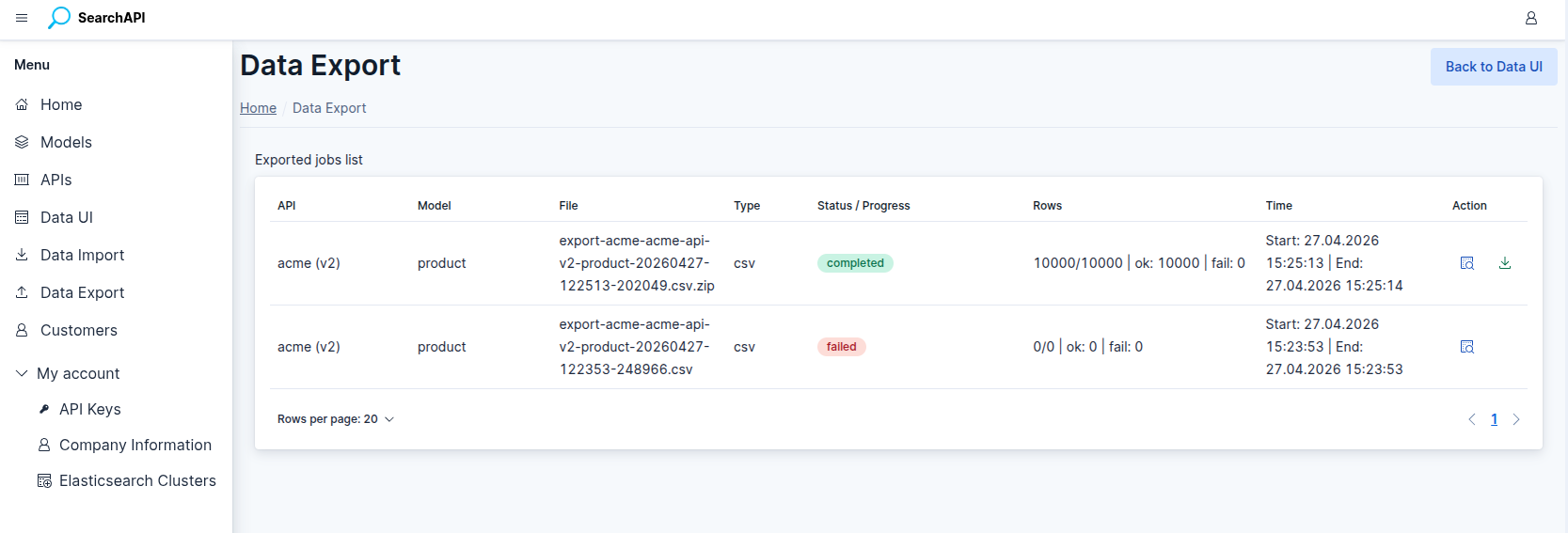 Export job list with status badges and download actions
Job Statuses
An export job moves through the following states:
| Status | Meaning |
|---|---|
| queued | Job is waiting in the processing queue. |
| running | Worker is reading records from Elasticsearch and writing the file. Progress % updates in real time. |
| completed | All records were exported successfully. File is ready to download. |
| completed_with_errors | Some rows failed but the file was still produced. Download is available. |
| failed | The job failed entirely. No file is available. Check the job detail for the error message. |
Export Job Detail
Click the inspect icon on any job in the list to open its detail page. The detail page shows:
- Summary stats — total rows, successful rows, failed rows, progress %
- Status badge and live progress bar
- Job metadata — API, model, file name, start/finish times, who requested it
- Error message if the job failed
- Download button when the file is ready
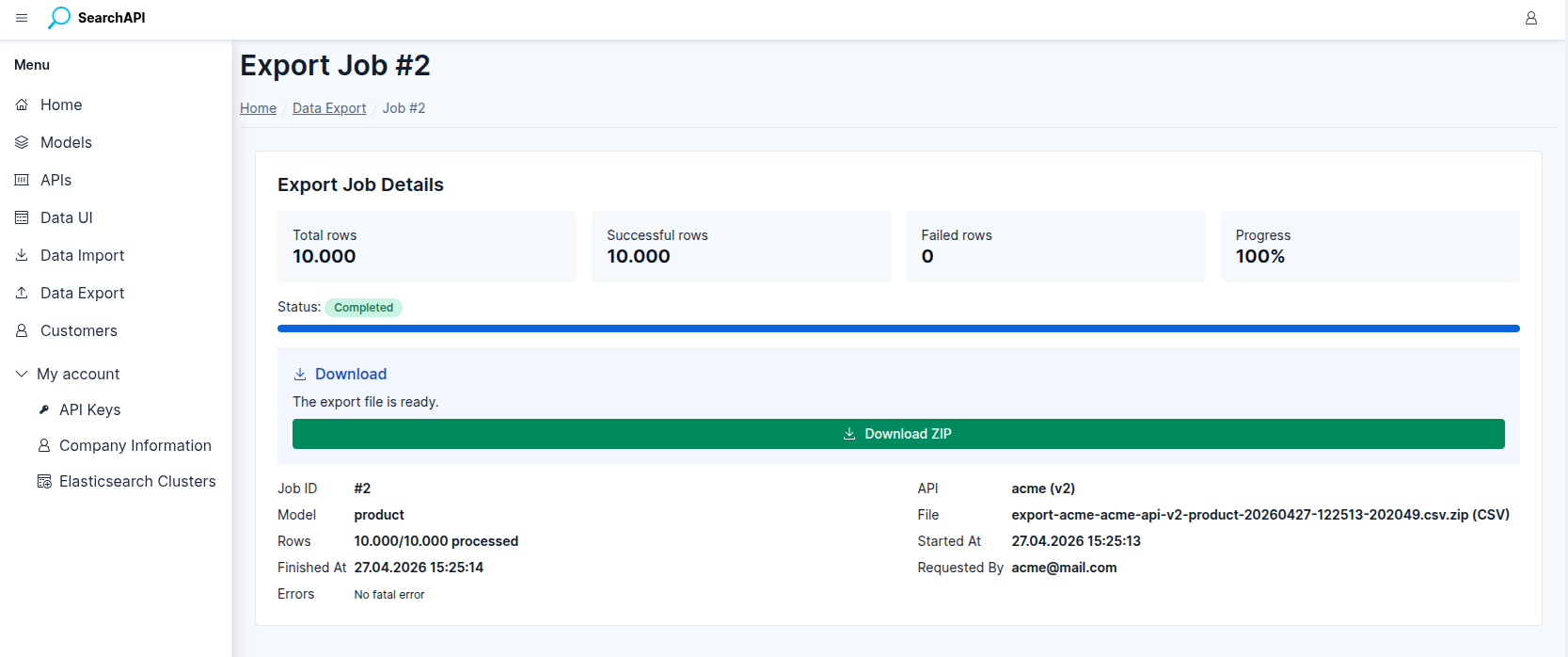 Export job detail with stats, status, and download button
Downloading the File
When a job reaches completed or completed_with_errors status, a Download ZIP
button appears both in the job list and on the detail page. The downloaded archive contains a single file named after
the export job in the format you chose (CSV, JSON, or SQL).
The download is not available while the job is queued or running. For failed jobs no file is produced — check the error message in the job detail.