Endpoints
Endpoints expose a model through a URL path and HTTP method.
What is an Endpoint?
An endpoint binds a model to a specific path and HTTP verb, making your data accessible to consumers. Each endpoint belongs to an API version, so you can evolve your API without breaking existing integrations. After creating an endpoint, assign API keys to it to control who can call it.
URL Structure
Every endpoint URL is composed of four parts:
For example: acme.searchapi.net/acme-api/v1/products
Creating an Endpoint
In the dashboard sidebar, navigate to APIs, click Endpoint List and click Add New Endpoint. A modal form will appear with the following fields:
-
Model — select the model this endpoint will expose. Once a model is selected, the path may be auto-filled if the model already has an associated endpoint path. A model already used by another endpoint group in this API version is shown disabled, since each model can only back one endpoint group per version.
-
Path — the URL path segment for this endpoint (see rules below).
-
Method — one or more HTTP methods:
GET,POST,PUT,DELETE,PATCH. A separate endpoint is created for each selected method. SelectingGETcreates both a list endpoint and its detail endpoint (/{id}) together.
Click Save to create the endpoint(s) and close the modal, or Save and Continue to add another endpoint without closing.
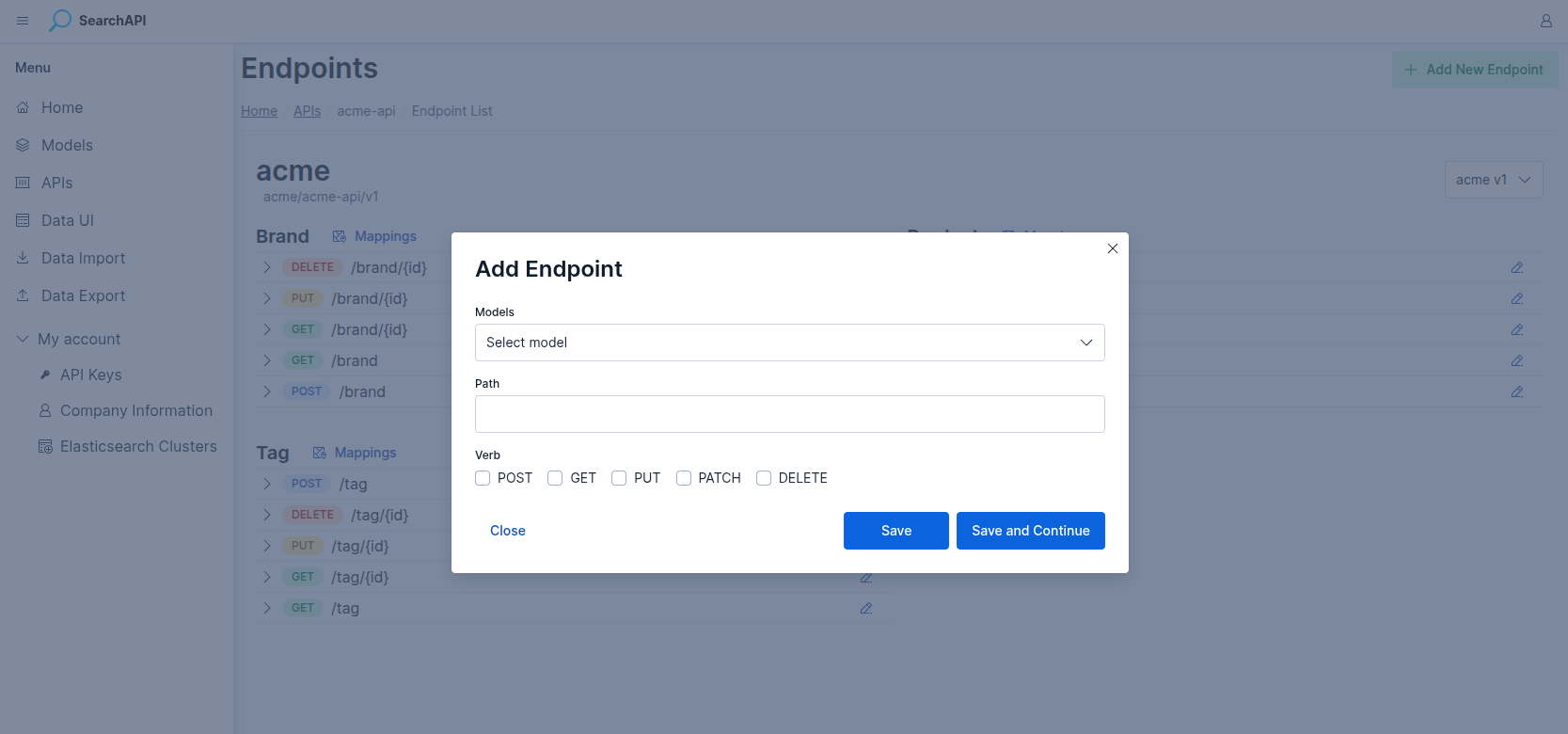 Add endpoint modal screenshot
Path Rules
The endpoint path follows the same rules as the API path:
- Only lowercase letters (
a–z), numbers (0–9),-and_are allowed - Must start with a lowercase letter or number
- Cannot consist of only numbers
- An optional leading
/is accepted - Maximum 80 bytes
Endpoint List
Endpoints are grouped by path on the API's endpoint list page. Each group header shows an Edit button, which opens a single endpoint editor covering every HTTP method in that group, and a Mappings button showing the group's Elasticsearch mapping JSON.
Expanding an endpoint accordion row shows its model's field table — Name, Type, Required, and Searchable. A lock icon next to the method and path shows whether any API key is assigned to that specific endpoint; use the key icon at the end of the row to open the Set API Keys modal (see API Keys below).
A version selector at the top right lets you switch between draft and published versions of the API to compare their endpoints.
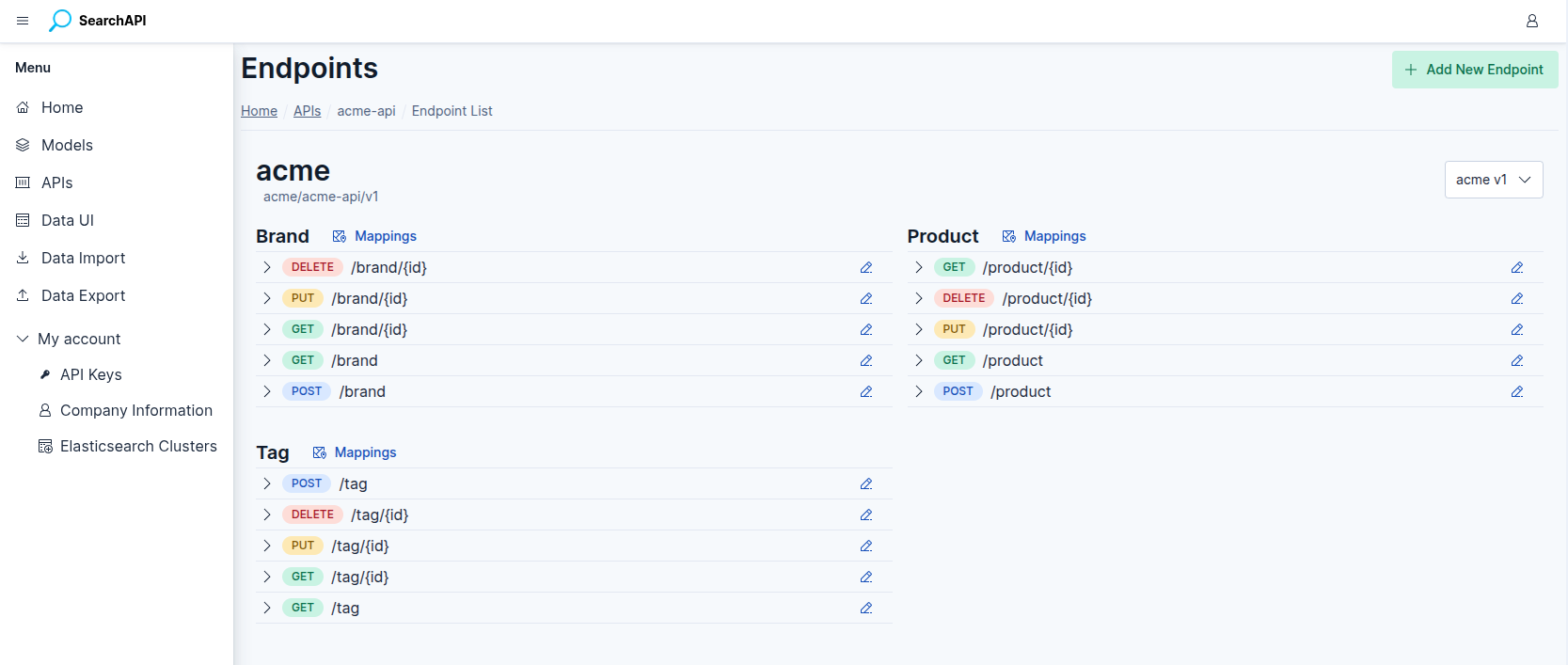 Endpoint list screenshot
Editing an Endpoint
Click a group's Edit (pencil) button on the endpoint list to open its editor. One editor page covers every HTTP method in the group, so the following fields apply to the whole group at once:
- Path — read-only; the path cannot be changed after creation
- Description — optional text shown in Swagger documentation
- Model — the model this endpoint exposes; can be changed on a draft version. A model already used by another endpoint group in this API version is shown disabled.
- Page Size — number of records returned per page; visible only when the group has a
GETlist endpoint
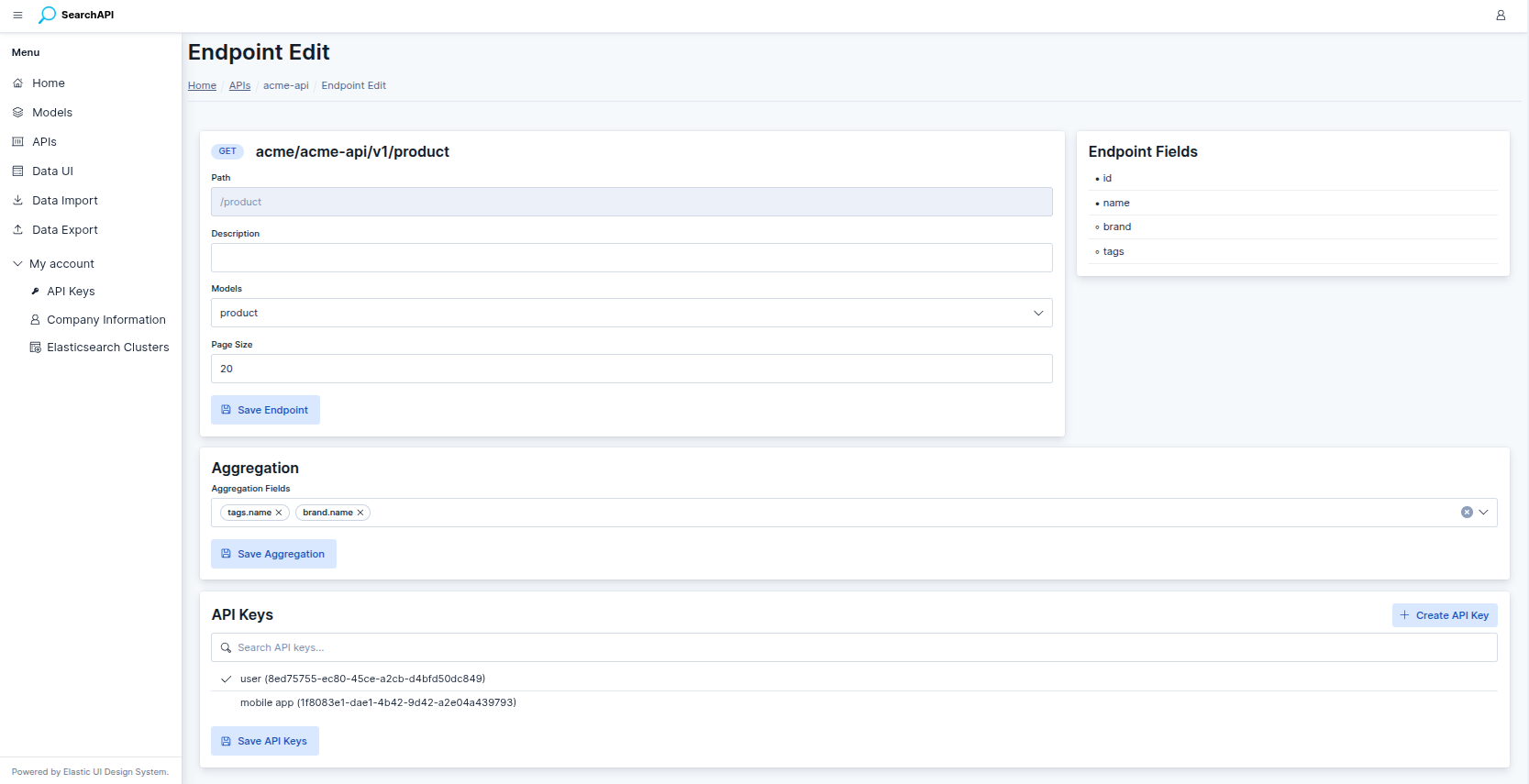 Endpoint editor screenshot
Endpoint Methods
The Endpoint Methods panel lists every possible HTTP method as a checkbox, reflecting which ones currently exist for this group. Check or uncheck methods and click Save Methods to add or remove them — at least one method must always stay checked.
Checking GET creates both the list endpoint and its detail endpoint
(/{id}) together; unchecking it removes both. Unlike the rest of the editor,
this panel stays editable even after the API version is published.
Aggregation
Aggregation is available exclusively on GET endpoints. When
enabled, the API response includes an aggregations object alongside the regular
results. For each selected field, it returns a buckets array of distinct values
and the number of matching records per value (doc_count).
Regular fields
For plain fields the key is the field value as stored:
{
  "aggregations": {
    "category": {
      "buckets": [
        { "key": "Shoes",       "doc_count": 134 },
        { "key": "Clothing",    "doc_count": 98  },
        { "key": "Accessories", "doc_count": 53  }
      ]
    }
  }
}
Nested / object fields
For fields from referenced nested or object models (selected with
dot notation, e.g. brand.name), the key is stored internally as
value|primaryKey — combining the display value with the primary key of the
related record. The aggregation key in the response reflects this format:
{
  "aggregations": {
    "brand_name": {
      "buckets": [
        { "key": "Nike|5",    "doc_count": 142 },
        { "key": "Adidas|3",  "doc_count": 98  },
        { "key": "Puma|8",    "doc_count": 45  }
      ]
    }
  }
}
Note that the dot in the field path (brand.name) is replaced with an underscore
in the response key (brand_name). The value|primaryKey format lets
your application display the label and use the ID for filtering in a single request.
The Aggregation panel in the endpoint editor lets you select which fields to include. Aggregation settings are saved separately with the Save Aggregation button.
Field Boosts
Field boosts control relevance ranking on the GET list endpoint.
A boost is a positive weight per field: a match on a field with boost 3 counts
three times as much toward a record's score as a match on a field with the default weight
(1). Use it to rank, for example, matches on name above matches on
description.
The Endpoint Fields panel in the endpoint editor lists every boostable field
with a number input. It is shown only when the group has a GET list endpoint.
-
Plain fields of the model can be boosted directly.
-
Nested / object fields cannot be boosted themselves; instead, their sub-fields that are marked Visible In The Related Model are listed with dot notation (e.g.
brand.name) and can be boosted individually. -
The value must be a positive number. Leave the input blank to keep the default weight.
Boosts are applied when a field is matched — by the q full-text search (which
covers Searchable fields only) or by a field filter. When any boost is set, or
a q search is sent, results are ordered by relevance score (highest first, then by
primary key) unless the request specifies a sort parameter, which always takes
precedence.
Boosts are saved separately with the Save Field Boost button. Unlike most endpoint settings, they stay editable after the API version is published and take effect immediately — no redeploy is needed. Changing the endpoint's model resets its boosts.
API Keys
API key assignment happens from the Endpoint List page, not the editor. Each endpoint row shows a lock icon — locked if at least one API key is assigned, open if none is — and a key-shaped Set API Keys button. Clicking it opens a modal where you can select which API keys are authorised to call that specific endpoint, or create a new one directly from the modal.
Toggle Assign to entire endpoint group in the modal to apply the selected key(s) to every method in the group at once. This is additive: it only adds the selected key(s) to endpoints that don't already have them and never removes an existing assignment from any endpoint in the group.
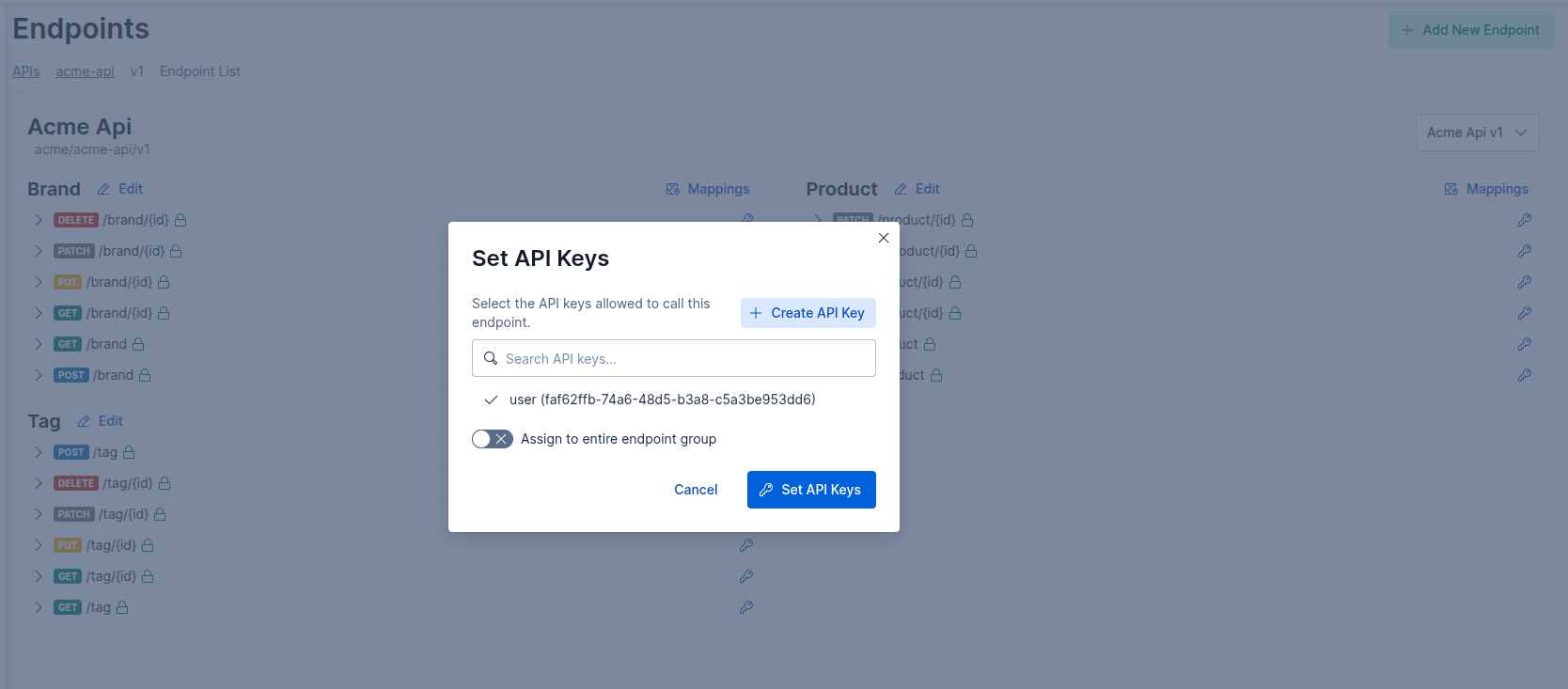 Set API Keys modal screenshot
For more details on managing API keys, see API Keys.
Locking
Once an API version is published, most endpoint settings are locked. The editor will show a warning: "You can't edit this version, except for adding or removing methods below. For other changes, go to version list and create a new version to update this endpoint." This applies to path, description, model, page size, and aggregation fields. Endpoint Methods and Field Boosts are the exceptions and stay editable even after publishing. To make any other changes, create a new API version and update the endpoints there.