API Versioning
Versions let you evolve your API without breaking existing integrations.
What is an API Version?
An API version is an independent snapshot of your API's endpoints and their models. Each
version gets its own URL path segment (e.g. v1), so consumers can pin to a
specific version while you work on the next one. Once a version is deployed it becomes
active and its endpoints are locked — changes must be made in a new version. Endpoint data
requires a valid API key; without one the request is rejected.
Version List
Navigate to APIs in the sidebar, then open an API to reach its Version List. Each row in the table represents one version and provides:
- Deploy / Redeploy — publish a draft version or re-publish an already deployed one
- Version — the version number and a real-time progress bar during deployment
- Endpoints — a link to the endpoint list for that specific version
- Swagger 3.0 — create, download, or view the Swagger document (available after deploy)
- API Keys — assign API keys to the endpoints of this version
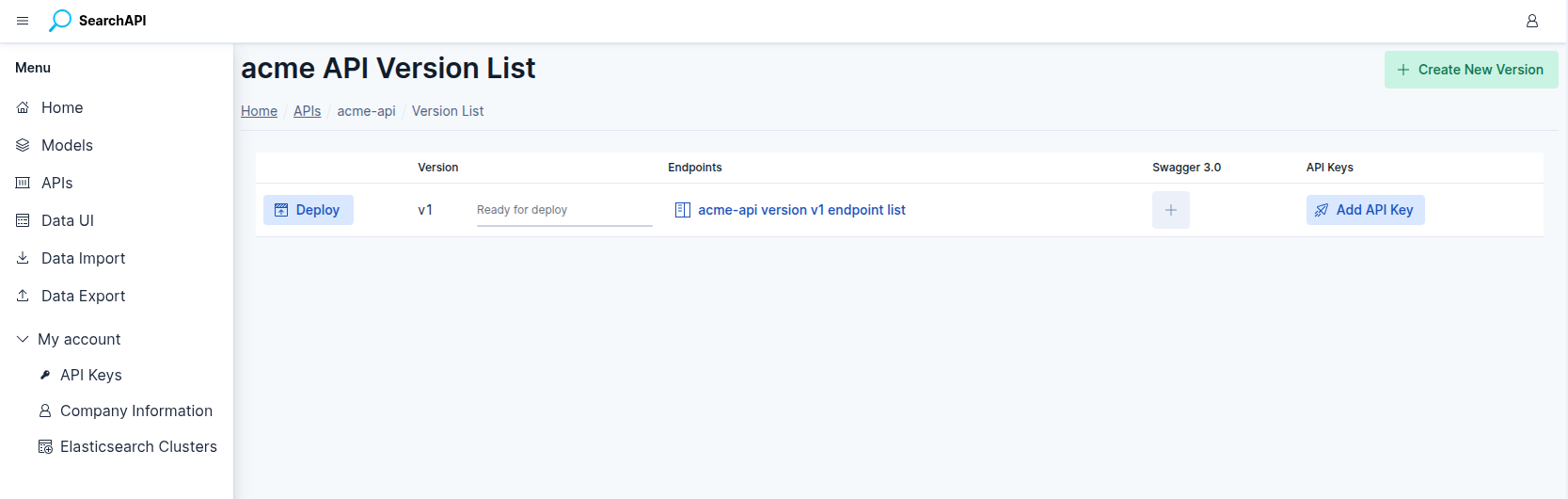 Version list screenshot
Creating a Version
Click Create New Version in the top-right of the Version List page. A modal
will open with a pre-filled, read-only version number — the system automatically calculates
the next version by incrementing the major number of the highest existing version
(e.g. if 2.0 exists, the next version will be 3.0). Click
Create to confirm.
Version Number & Slug
Version numbers follow a major.minor format (e.g. 1.0,
2.0). Each version also has a slug derived from its major
number — a v prefix is added — which appears in every endpoint URL:
Version 1.0 → slug v1 ·
Version 2.0 → slug v2
Deploying a Version
Click the Deploy button on the version row to publish it. The deploy process differs depending on whether a previously published version exists for the same API:
First deploy
When no prior published version exists, the system makes sure an Elasticsearch index exists for each endpoint. If an endpoint's index was already created by a Data Import, it is kept as is together with its data; otherwise a new, empty index is created using the version's model mappings. Records can then be added via the API endpoints or the Import feature. The version is published immediately once all indexes are in place.
Subsequent deploys
When a previously published version already exists, the deploy involves two steps:
-
Index creation — new Elasticsearch indexes are created for the new version using its updated model mappings.
-
Data copy — records from the previous version's indexes are copied into the new indexes asynchronously. The copy respects the new mapping: fields that exist in both versions are transferred as-is; fields added in the new version receive
nulluntil updated; fields removed from the new version are not copied.
The copy runs in batches and its progress is tracked per endpoint. Each version row shows a progress bar with a live status message (e.g. "Products copying. Total: 1500 — Completed: 750"). Once all indexes finish copying, the version is automatically published and a "Deploy completed successfully" notification appears.
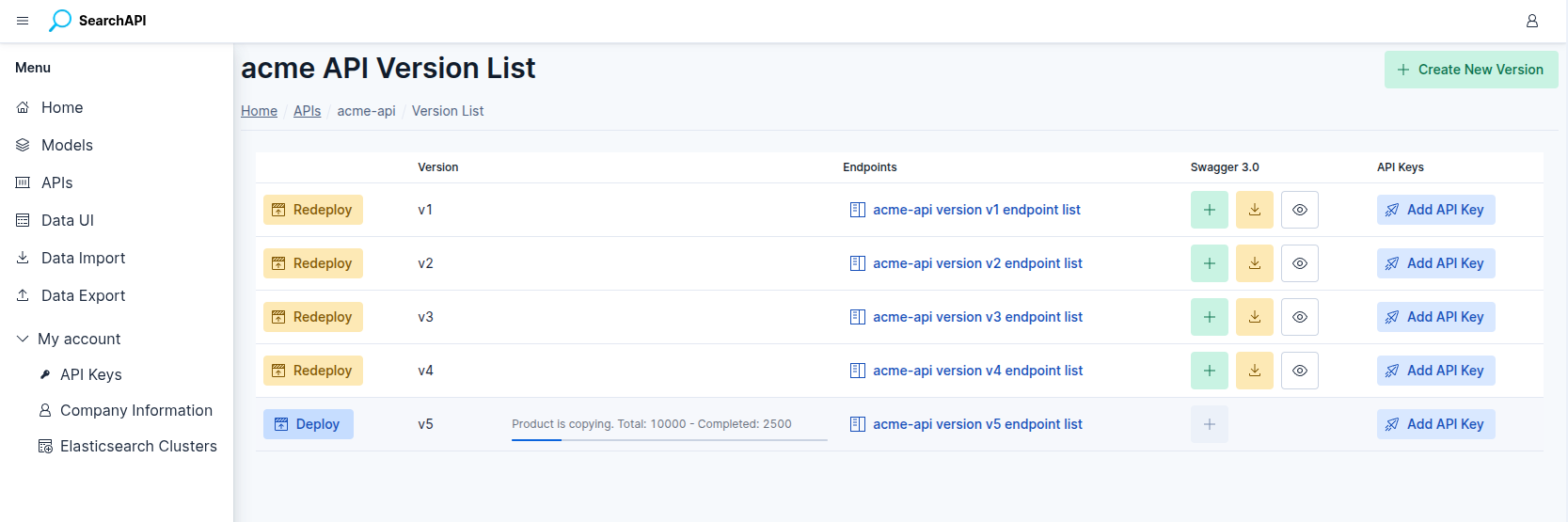 Deploy progress screenshot
Swagger Documentation
After a version is deployed, the Swagger 3.0 column becomes active. Click the + button to generate the Swagger document for that version. Once created, two additional actions appear:
- Download — save the Swagger YAML file (
file.yaml) locally - View — open the interactive Swagger UI in the browser
For full details on Swagger documentation, see Swagger Documentation.
API Keys
Click Add API Keys on a version row to open the key assignment panel. Select an API key from the dropdown, then toggle access per endpoint using the checkboxes. Use the Apply to all endpoints switch to grant or revoke access in bulk. You can also create a new API key directly from this panel. Click Save to confirm.
API key assignments can be saved or changed at any time — before or after the version is deployed. If the version is already deployed, changes take effect immediately. If the version has not been deployed yet, the assignments take effect once it is deployed. For more details, see API Keys.
Assigning keys directly from this panel is a convenient alternative to navigating to the API Keys page and back — you can set up access for all endpoints without leaving the Version List, then deploy in one go.