Team Members
Invite team members to your workspace and control their login access.
Overview
Navigate to My Account → Team Members in the dashboard sidebar. The page lists everyone who belongs to your workspace, including yourself.
This page is accessible to the workspace Owner and to Managers. Members with the User role do not see it in the sidebar, and opening it directly shows an Access Denied page.
Roles
- Owner — the account that created the workspace; manages every member and cannot be edited or deactivated
- Manager — can manage team members, billing and company settings
- User — works with models, APIs and data, but cannot manage the team, billing or company settings
A Manager can only edit, deactivate or reactivate members with the User role, plus their own details. Other Managers can only be managed by the Owner, and only the Owner can change a Manager's role, including a Manager's own.
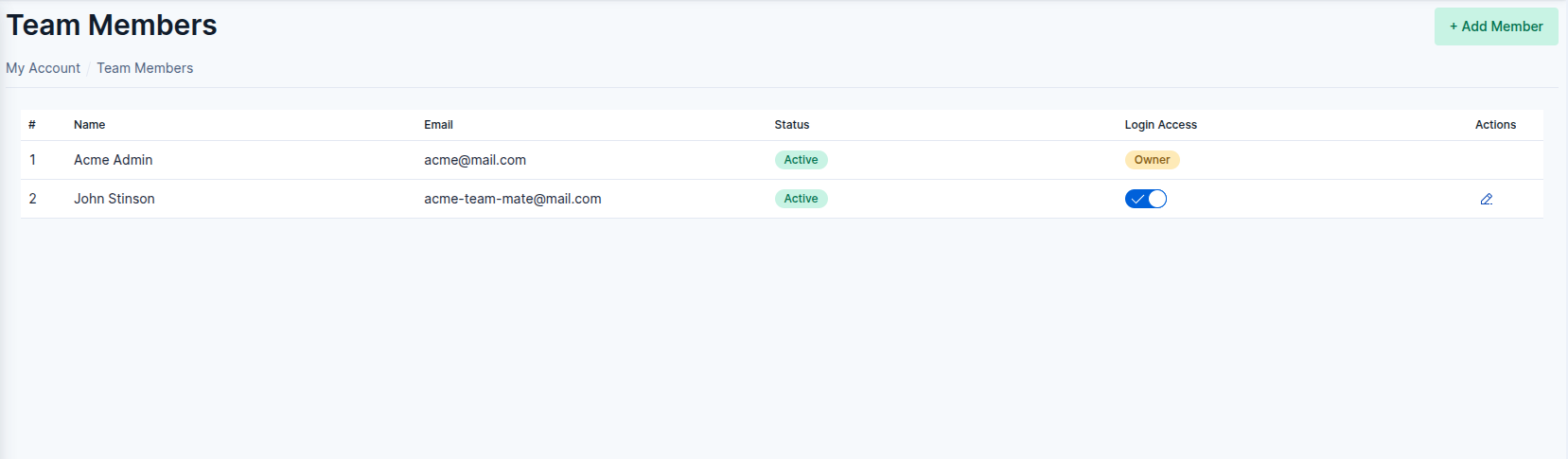 Team Members list screenshot
Member Table
The table displays the following columns for each member:
- Name — first and last name
- Email — login email address
- Role — Owner, Manager or User
- Status — Active or Inactive
- Login Access — toggle to enable or disable login. The owner is shown as Owner and your own row as Your account; neither can be toggled. For a Manager, other Managers' toggles are disabled
- Actions — edit button to update member details. Not shown for the owner, and not shown to a Manager on other Managers' rows
Adding a Member
Click the + Add Member button in the top-right corner to open the invite form. All fields are required:
- Email — the new member's login email
- First Name
- Last Name
- Role — User (default) or Manager
- Password — initial password for the member's account, at least 6 characters
Click Add to create the account. Each email address can only be registered once. The new member receives a verification email and can log in with the provided credentials only after verifying their email address.
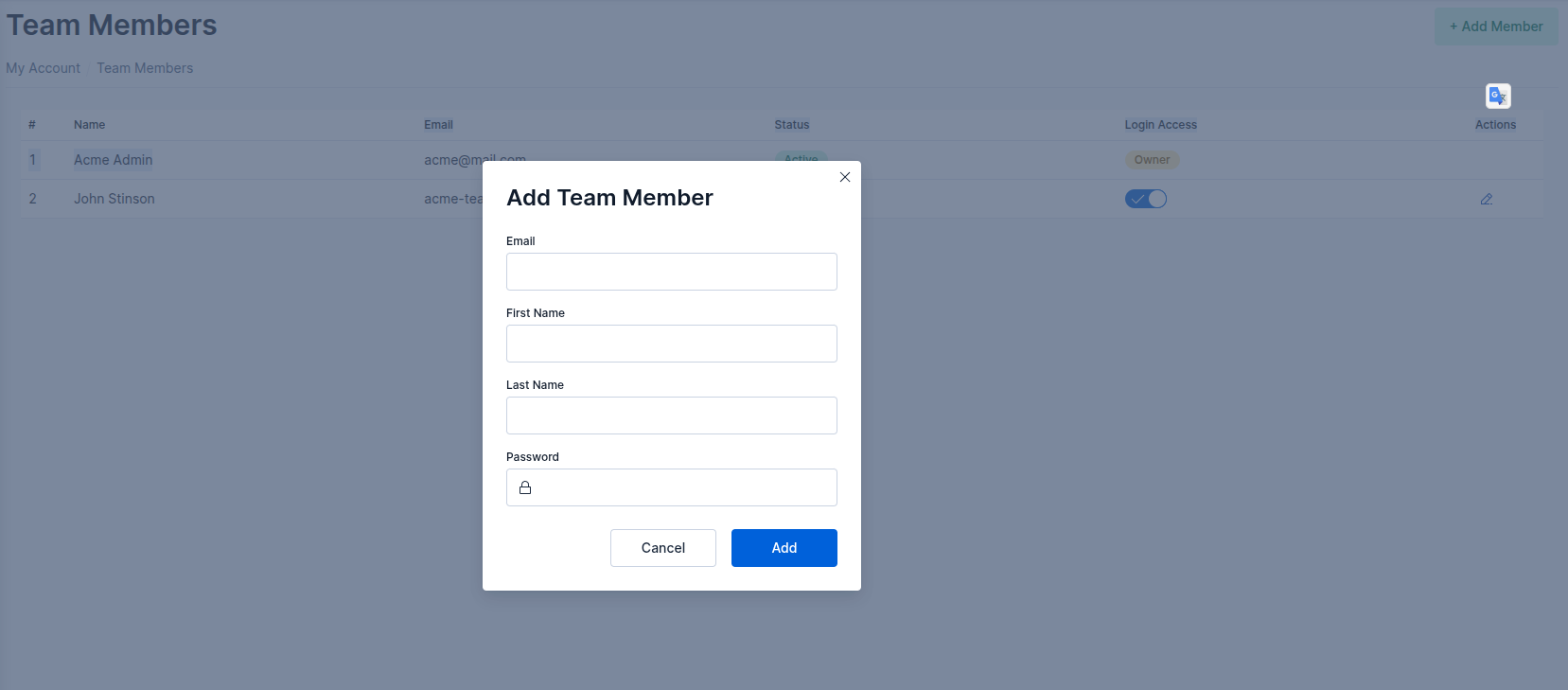 Add Team Member modal screenshot
Managing Members
All your members are listed on the Team Members page. From there you can:
- Edit — update a member's email, name, role or password (leave the new password blank to keep the current one). The role field is locked when a Manager edits their own account
- Deactivate / Reactivate — toggle login access without deleting the account; a confirmation dialog appears before each change. Deactivating a member also immediately revokes their MCP access
The workspace Owner account cannot be edited or deactivated through this page, and you cannot deactivate your own account.