Models
A model defines the structure of your records — similar to a table in a relational database.
What is a Model?
In SearchAPI, a model describes what your data looks like. Each model has a name and a set of fields, where every field has a name, a type, and optional configuration flags. Once you have a model, you can expose it through an endpoint so consumers can search or retrieve your records.
Creating a Model
In the dashboard sidebar, navigate to Models and click the + New Model button. Fill in the model name, add at least one field, and click Save.
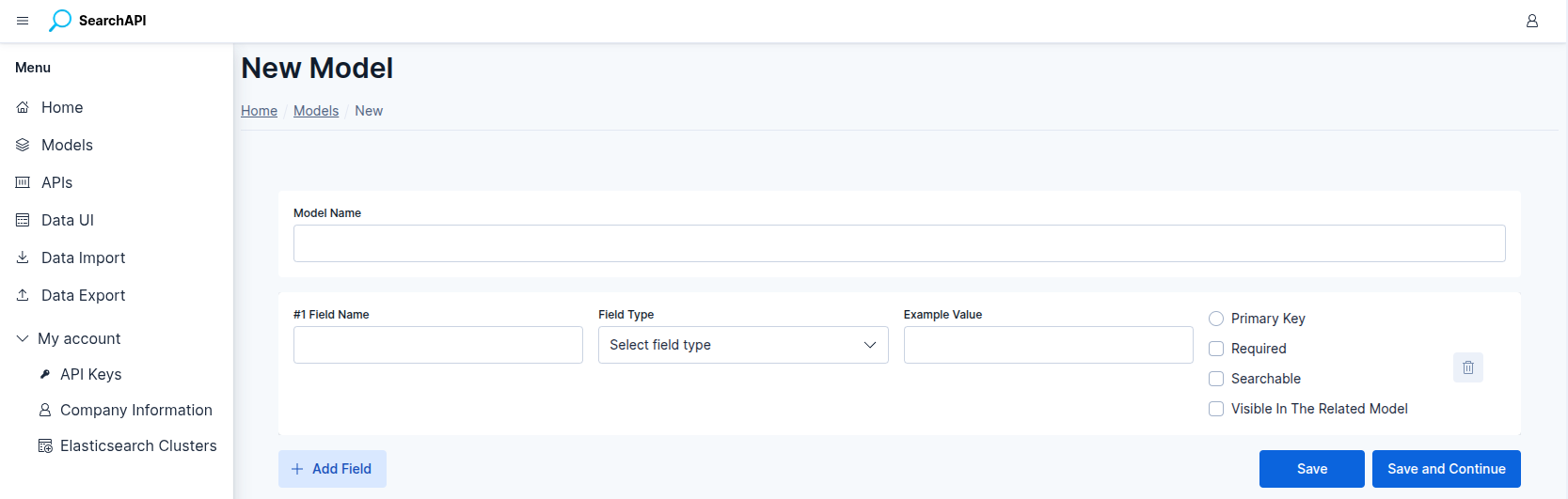 New model form screenshot
Model Name
The model name must follow these rules:
- Only lowercase letters, numbers,
-and_are allowed - Must start with a lowercase letter or number
- Cannot consist of only numbers
- Maximum 50 bytes
Fields
Each model must have at least one field. Click Add Field to append a new row. Every field row contains the following inputs:
Field Name
The internal identifier for the field. Rules:
- Only lowercase letters, numbers and
_are allowed — hyphens (-) are not permitted - Must start with a lowercase letter or number
- Cannot consist of only numbers
- Maximum 80 bytes
- Cannot be a reserved name:
aggs_fields,sort_fields,q,sort,includes,excludes
Field Type
Select the Elasticsearch data type for this field. Available types include
integer, long, float, keyword,
text, boolean, date, nested, and
object.
Field Type Format
Visible only when the field type is date. Select date
(yyyy-MM-dd) or date_time (ISO 8601) to match how your values are stored.
Example Value
An optional sample value shown in the generated Swagger documentation. Maximum
250 bytes. Not available for nested and object
fields.
Model (for nested / object fields)
When the field type is nested or object, a Model
dropdown replaces the Example Value input. Select the related model whose structure this
field embeds.
Field Flags
Each field row also has the following checkboxes and options:
-
Primary Key — exactly one field per model must be marked as the primary key. Only
integer,longandkeywordfields can be a primary key. Uselongfor ids that may exceed 2,147,483,647 (e.g. a MySQLBIGINTid). Setting a field as the primary key automatically marks it as Required. -
Required — when checked, the field must be present in every record. Always enabled for the primary key field.
-
Searchable — includes this field in full-text search performed via the
qparameter on endpoints. Theqsearch also covers the searchable fields of any referencednestedorobjectmodels. Not available for the primary key or fornested/objectfields themselves. -
Visible In The Related Model — when another model references this model via a
nestedorobjectfield, this flag controls which fields appear in the parent model's response. The primary key of the referenced model is always included by default; if no other field is marked visible, only the primary key will appear. Additionally, if you want a Searchable field of the referenced model to be matched by theqparameter, it must also be marked as visible. Not available for the primary key or fornested/objectfields.
Self-Referencing Models (Tree Structure)
Some data is hierarchical — categories with subcategories, folders, org charts. Check Self-referencing (tree structure) in the model form to let each record point to another record of the same model as its parent.
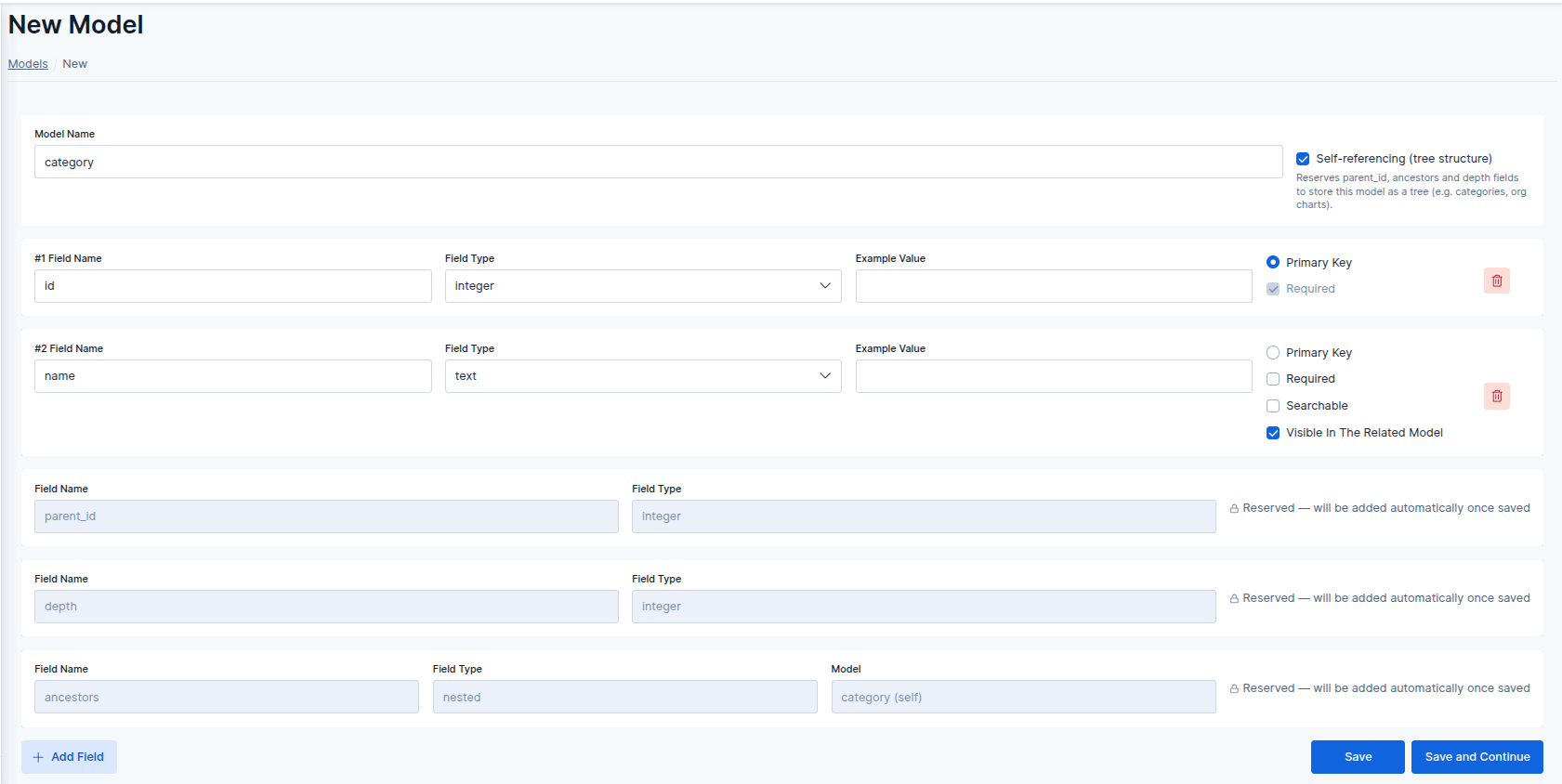 Self-referencing option and the system fields it adds
Enabling it adds three system fields to the model. Their names are fixed and they cannot be renamed or deleted:
-
parent_id— the primary key of the parent record, with the same type as the model's primary key. Leave it empty (or sendnull/0) for a root record. This is the only tree field you write. -
ancestors— the chain of parent records from the root down to the direct parent (the record itself is not included). Each entry contains the ancestor's primary key and its fields marked Visible In The Related Model, so a breadcrumb can be shown without extra requests. -
depth— the record's level in the tree:0for a root record,1for its children, and so on.
ancestors and depth are calculated automatically and are read-only —
sending them in a write request is rejected. For example, a record in a categories
model looks like this:
{
  "id": 3,
  "name": "Smartphones",
  "parent_id": 2,
  "depth": 2,
  "ancestors": [
    { "id": 1, "name": "Electronics" },
    { "id": 2, "name": "Phones" }
  ]
}
Rules
-
At least one field must be marked Visible In The Related Model before self-referencing can be enabled; these fields provide the labels stored in
ancestors. -
Regular fields named
parent_id,ancestorsordepthmust be renamed or removed before enabling it. -
The option can be turned on and off freely until the model is locked. After that it stays enabled permanently.
-
A record cannot be its own parent, the parent must exist, and a record cannot be moved under one of its own descendants — such writes are rejected.
-
When a record's
parent_idor one of its visible fields changes, theancestorsanddepthof all its descendants are updated automatically in the background. -
A record that still has children cannot be deleted. Move or delete its children first.
Save vs Save and Continue
When creating a new model you have two save options:
- Save — saves the model and returns you to the Models list
- Save and Continue — saves the model and immediately clears the form so you can create another model without navigating away
Managing Models
All your models are listed on the Models page. Each row shows the model name and its field names as badges. From the action buttons you can:
- Mappings — view the raw Elasticsearch mapping JSON generated for this model
- Edit — open the model editor; if the model is locked changes are saved as a new copy via Save As
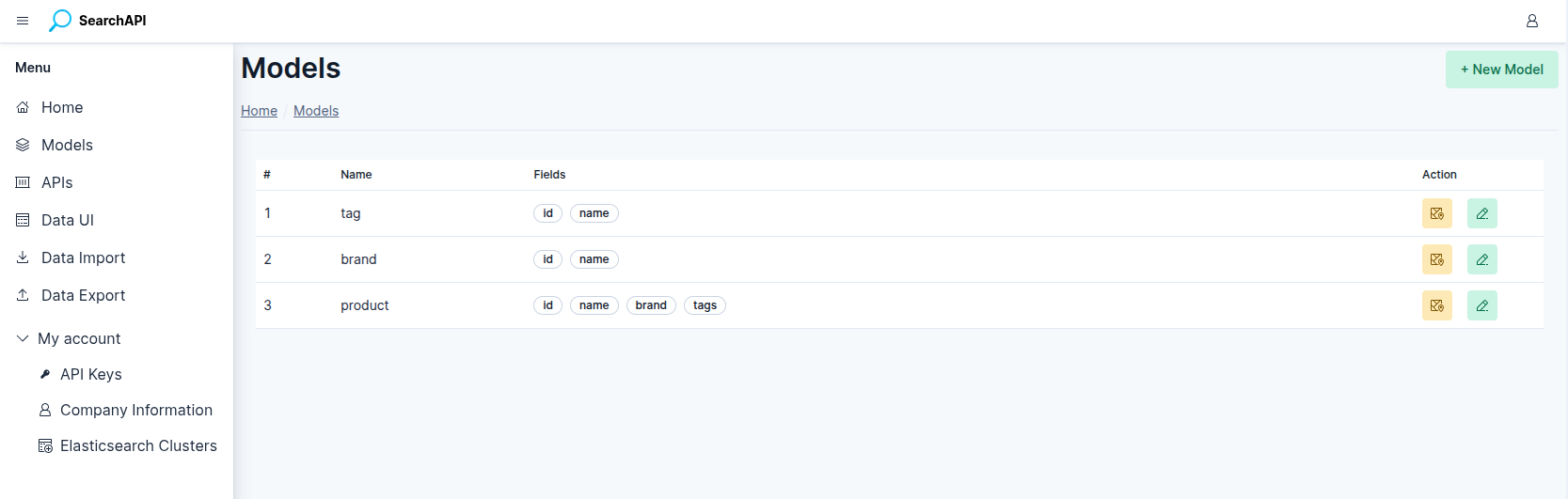 Models list screenshot
Locking
Once the model is connected to an endpoint — even in a draft, undeployed API version — the model is locked and can no longer be edited directly. In this state the save button changes to Save As — entering a new name creates a fresh copy of the model that you can modify freely, leaving the original model intact.