Guide 12: Import products with related data
Import products linked to brands, categories and tags, and review rows that failed in the job details.
Chapters
Transcript
Show the transcript
Welcome back. In the previous guide, you imported the brands, tags and categories. Now, let's import the products, and link them to all three.
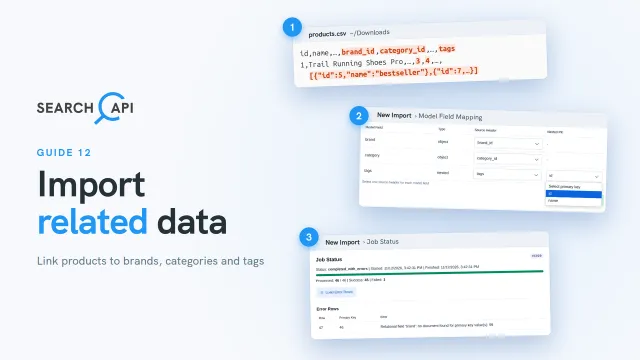
Click New CSV/XLSX Import, and choose the product model. Let's look at the products file. Instead of a brand name, each product holds a brand id and a category id. A product can have several tags, so the tags column holds a list, written as JSON. Each item holds a tag's primary key and its name. Only the primary key matters. For brands, categories and tags alike, SearchAPI finds the record you already imported, and copies its visible fields into the product. And the last row has brand id 99. There's no such brand. We added it on purpose, to see what happens. Close them, then upload the file.
Once the file is uploaded, most columns are matched by name, just like before. But the three related fields are left for you. The brand field links each product to a brand. Pick the brand id column. Same for category. For tags, pick the tags column. Since a product can have many, there's one more choice here: the Nested PK. It's the key, inside each JSON item, that holds the tag's primary key. SearchAPI lists the keys it found in your file, here id and name. So, pick id. If your column holds just their primary key values, like this, there's no key to choose, and SearchAPI uses each value as the primary key. Click Start Import.
When the import finishes, forty-five products are in. One row failed, so the import ends as completed with errors. A row that fails doesn't stop the others. To see why, click Load Error Rows. It's product 46: no brand has the id 99. But if too many rows fail, SearchAPI stops the import early, and its status is failed. The same happens when the file can't be read at all.
These errors stay with the job, so you can check them later too. Click Data Import. The products are listed with the same status. Click Detail Jobs. You'll find the job's details, with its successful and failed rows. Below, Error Rows lists every row that failed, with the row itself next to it. So you can fix it in your file, and import it again.
Now, let's look at the products in Data UI. Choose your API, its version, and the product model. Each product holds its brand and its category, with their names, not just their ids. Its tags are stored the same way. We'll cover this page later. Your catalog now has its products, linked to their brands, categories and tags. In the next guide, you'll import a file that creates a brand-new model, with its endpoint.
Related documentation
Read the details behind this guide on the documentation page.