Guide 11: Import CSV and Excel files into an existing model
Import brands, tags and categories from files: modes, delimiter, column mapping, ids and job progress.
Chapters
Transcript
Show the transcript
Welcome back. In this guide, you'll fill your API with data, straight from your files.
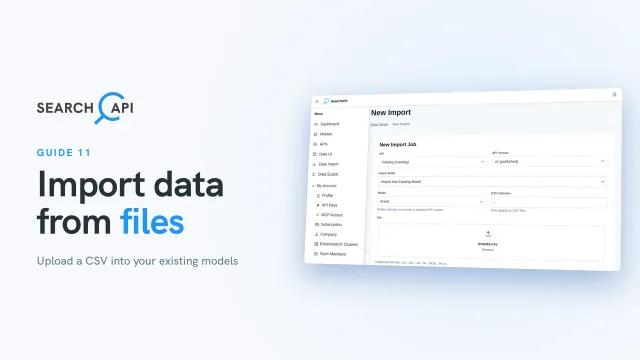
Open Data Import, and click New CSV/XLSX Import. Pick your API and its version. There are two modes. One creates a new model and its endpoint from your file. We'll cover that in its own guide. The other imports into a model you already have. Ours already exist, so choose Import Into Existing Model. Which model first? Order matters here. A product points to a brand, a category and tags, and SearchAPI finds them by their id. So import those first, and products last. We'll start with brands.
Next to it, the delimiter tells SearchAPI how the columns in your file are separated. Ours uses commas, the default. If yours uses semicolons or tabs, change it here. Besides CSV, you can upload an Excel file. You can also upload a zip or tar archive, as long as it holds a single CSV or Excel file. Uploads can be up to 100 megabytes. Now, let's check the brands file before we upload it. Its first row is the header: id, name, origin, founded year and description. Every row below it is one brand. Then, upload the file. SearchAPI takes the column names from that header row. If your file has no header row, untick this box. The columns are then named column 1, column 2, and so on. Ours has one, so tick it again.
Now, match the columns to the model's fields. Columns with the same name are matched for you. If a field has no match, or the wrong one, pick the column yourself. Here, the file says origin, but our field is country. No primary key column in your file? Tick Generate unique auto increment id, and SearchAPI numbers the rows for you. Ours has its own ids, and products will need them. Click Start Import.
Next, the tags. They have just two fields, so we imported them off camera, just like the brands. Categories take one more step, because they form a tree. Choose the category model. And let's have a look at the categories file too, before we upload it. Each row has a parent id. Footwear, Apparel and Accessories have none, so they're the top level. Running Shoes has parent id 1, so it sits under Footwear. Close them, then upload the file. The parent id field has a Tree parent badge. It needs the column that holds each category's parent, and ours is matched by name. From that, SearchAPI works out each category's ancestors and depth. Click Start Import.
So, while an import runs, you don't have to stay on this page. Click Data Import. Every import is listed here, with its status, and the list keeps itself up to date. Brands, tags and categories are all completed. In the next guide, you'll import the products, and link them to all three.
Related documentation
Read the details behind this guide on the documentation page.