Guide 9: Create API keys and set permissions
Create a read-only key and a write key, and choose which endpoints and versions each key can call.
Chapters
Transcript
Show the transcript
Welcome back. In this guide, you'll create API keys, and decide which endpoints each key can call.
Every request to your API needs a key, and a key only works on the endpoints you give it. Let's create one. In the setup guide, go to API Key Create. You can also find this page in the sidebar, under My Account, API Keys. A quick start tip appears here. It guides you through three steps. Click Create API Key, and name it storefront. This is the key your shop will use, to read products. The new key is selected, and you can copy it from here.
That's one way to create a key. There are two more, so you don't have to leave the page you're on. First, the endpoint list. Each endpoint's key icon opens Set API Keys, where you pick which keys can call that endpoint. It has a Create API Key button too. Let's make another key, backoffice, for your admin tools. We'll assign it later, so cancel for now. Second, the API version list. Its API Keys column opens a panel for the whole version, with the same button. We won't use it now. But if you're about to deploy and forgot to create a key, you can create one right here. It's the same key list, in all three places.
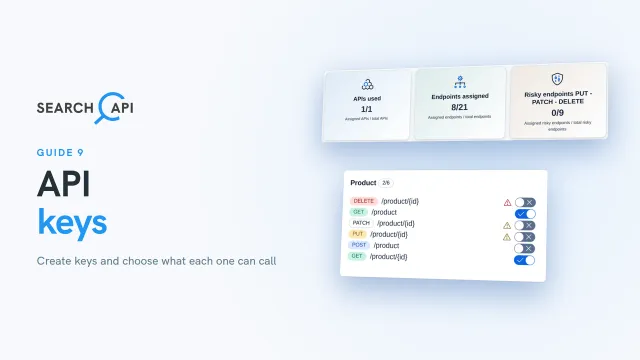
With both keys ready, let's go back to the API Keys page. Three cards show what the selected key can reach: its APIs, its endpoints, and the risky endpoints, put, patch and delete. They'll change as you turn endpoints on. Below the cards, pick the version. Each version has its own permissions. Or pick All versions, and the key gets access on every version that exists now. A new version copies its access from the version it starts from.
Now, give storefront its access. It only needs to read. Type get in the search box, so only the get endpoints are left. The bulk switch follows your search: it now says Apply to 8 listed endpoints. Turn it on. Every get endpoint switches on, in product, brand, category and tag. Endpoints assigned now shows eight. The risky card stays at zero, so this key can't change your data. Save Changes. If the version isn't deployed yet, the key starts working at the first deploy.
Storefront is done. Next, switch to backoffice, which needs to write too. The search still says get, so clear it, and the switch covers every endpoint again. Turn on Apply to all endpoints. Every endpoint switches on, and the risky card jumps to nine of nine. That's the one to watch. Before you share a key outside your team, check this number. Save Changes. You can still fine-tune single endpoints after the bulk switch.
So now your keys are ready, and each endpoint knows who can call it. In the next guide, you'll deploy your API. From then on, key changes apply as soon as you save.
Related documentation
Read the details behind this guide on the documentation page.