Guide 2: Choose your subdomain
Pick the subdomain that every API URL uses, check it against the rules, and confirm it, since it cannot change.
Chapters
Transcript
Show the transcript
Welcome back. In this guide, you'll choose your subdomain: the address all your APIs will live at.
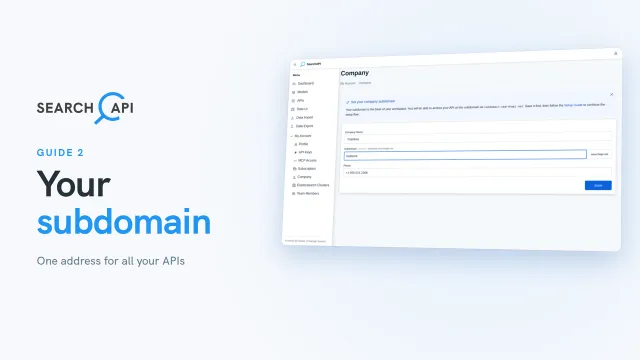
So… let's pick up where we left off. Click Go to Subdomain Setup, and you're on the Company page. It's also in the sidebar, under My Account.
Your company name and phone are already filled in from sign-up. The one that matters here is Subdomain. Let's type our company name… and the preview next to the label shows the address as you type.
Let's minimize the guide for now, then save and see. Not quite. The form tells you right away what's wrong: a subdomain is lowercase letters and numbers only, up to fifty characters. Lowercase it, and there's our address: trailstore dot searchapi dot net. Every API we create will be reached from here. And each company gets just one subdomain, which no one else can take.
Now, save again. Read this one carefully: once you confirm, your subdomain can't be changed later. Confirm, and it's locked in.
Alright, step one of the Setup Guide is done. In the next guide, we'll use this address to create your first API.
Related documentation
Read the details behind this guide on the documentation page.