Guide 4: Create your first models
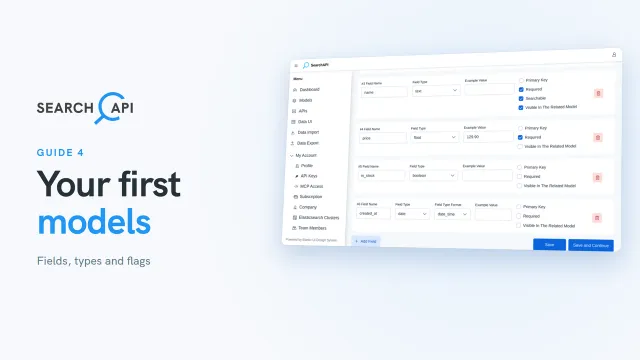
Create the brand and product models: primary keys, field types, field flags and date formats.
Chapters
Transcript
Show the transcript
Welcome back. In this guide, you'll create your first models: the shape of the data your API will serve.
So… back in the Setup Guide: click Go to Create Model. This is the Models page, also in the sidebar. Nothing here yet. So, let's click New Model.
A model describes your records, a lot like a table in a database. Let's start with brands. We'll leave Self-referencing for the next guide.
Every model needs a primary key. Our first field is id, an integer. Mark it as the primary key. Primary keys can be an integer, a long for very large numbers, or a keyword.
Now, add a field for the brand's name. Text is for words you'll search in. Searchable fields are the ones your API's full-text search looks in. So, make it searchable. The example value shows up in your API documentation. Visible In The Related Model matters when another model points to this one. We'll cover that in the next guide. The primary key is always required and visible, and it can't be searchable. Country is a keyword: an exact value, good for filtering. Founded year is another integer. Notice there's no Searchable here: only text and keyword fields can be searchable. Field names use lowercase letters, numbers and underscores, no dashes, like founded_year. And finally, a searchable description.
Brand is ready. Let's close the guide for now. You can reopen it anytime from Setup guide, up here. Now, instead of Save, click Save and Continue. Oops! Model names only allow lowercase letters, numbers, dashes and underscores. Let's fix that… and try again. The model is saved, and the form clears for the next one.
Let's check the Setup guide: three of six done. Create Model has its check, and one model is all Create Endpoint needs. Still, our store sells products, and in the next guide we'll link each one to its brand. So, let's create a product model too. Same start: an id as the primary key. The SKU is a keyword, and the name is searchable text. Price is a float, for decimals. In stock is a boolean: true or false. And for created at, pick date, and a format option appears. Date is just the day; date time adds the time. I'll add the remaining fields the same way.
Now, save. Here are both models, with their fields. Mappings shows how Elasticsearch will store each field: here's price as a float, and created at as a date. Edit takes you back to the form. And keep in mind: once a model is connected to an endpoint, it's locked. You can still edit it, but saving creates a copy under a new name. The one exception is Required: it doesn't change how your data is indexed, so you can switch it on or off at any time, even after deploy.
That's the basics of models. In the next guide, we'll add two more, categories and tags, and connect them all, including a category tree.
Related documentation
Read the details behind this guide on the documentation page.