Guide 16: Search and manage records in Data UI
Browse and search records in Data UI, read relevance scores, and add, edit and remove records.
Chapters
Transcript
Show the transcript
Welcome back. Your Journal API is live, and its articles are waiting. In this guide, you'll search, add, edit and remove them in Data UI. Let's see them.
Open Data UI. It's a handy way to manage your data, without writing a single API request. The journal's articles are still selected, so the table opens right away. Its table comes with a few useful tools. Let's look at them first. For more room, click Enter fullscreen. Now the table fills the screen. There are twenty-four articles, twenty to a page. To see the rest, click two. Now let's change the order. Open a column's menu with the three dots in its header. Choose Sort New-Old, and the newest articles come first. Next to the search box is the refresh button. It reloads the table, but you'll rarely need it. The table updates itself after every change. Before we search, take a look at the Score column. Every table in Data UI has it, but it isn't one of your fields. It shows how well each record matches a search. Right now, every row scores one. Without a search, every record matches equally.
Now let's search. But first, turn off the sort, because a sort decides the order instead of the score. Open the column's menu, and click Unsort New-Old. Type shoes into Search rows, and press Enter. Only searchable fields are searched: the title and the summary. Each field that matches adds a point. This article has shoes in both, so it scores two and comes first. This search works just like q in your API. So you can try a search here before your app sends it.
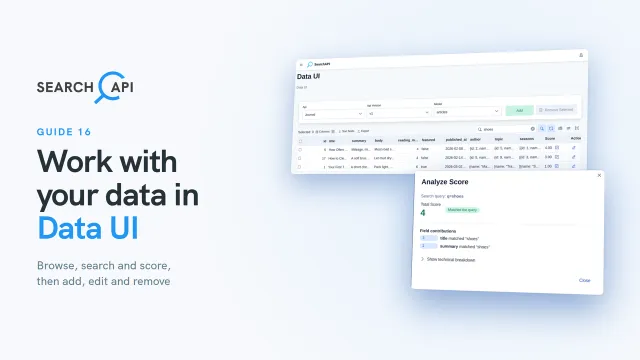
Back to the scores. To see where a score comes from, click the magnifier next to it. Analyze Score shows the total, and what each field added: one for the title, one for the summary, so two in total. Show technical breakdown has the full details. Close it. You can check it in the table: shoes is in the title, and in the summary. Now check the next article, the same way. Only its summary matched, so it scores one. Its title doesn't mention shoes, but its summary does.
You can also prioritize fields with field boosts. A match in a boosted field counts more. Let's give the title a boost. Press Escape to leave full screen. Click the menu icon, and open APIs. Then click Endpoint List, and click Edit next to Articles. In Field Boosts, give title a boost of three, and save. Back in Data UI, search for shoes again. A title match now counts three. How to Clean Suede Shoes has shoes in its title, so it moves up to second. Your First Trail Race, with shoes only in its summary, drops to third.
Now let's work with the records. Remember the article that failed to import? Let's add it here. Clear the search, and click Add. Its id is twenty-five, and its title is Autumn Trail Shoe Picks. The summary is: Grip for wet leaves. The body: Look for deep lugs. Let's say it takes one minute to read. This time, featured is true. Pick the publish date from the calendar: October twenty-eighth, at eight A.M. Author and topic are relations. Pick Maya Lindqvist. Each choice shows the record's id and its visible field. Then pick Trail Running. Add and Continue would keep the form open for the next record. We only need this one: click Add. The journal has all twenty-five articles now.
Now let's update a record. This one is an autumn article, so it should have a season. Click Edit. The id can't change. In seasons, pick Autumn, and update it.
The article keeps a copy of the season's name, and of its author's name too. Let's update the author. Pick authors from Model, and click Edit next to Maya. First, change her location, and update it. Location isn't Visible In The Related Model, so articles don't copy it. It's saved right away. Now change her name, and update it again. Name is Visible In The Related Model, so it's in each of her articles. Before saving, SearchAPI tells you it will update five records in articles. Go ahead and continue. Pick articles from Model again. Her new name is already in them.
Seasons are copied the same way, as a list. Pick seasons from Model, and click Edit next to Autumn. Change its name, and click Update. SearchAPI tells you it will update fifteen records in articles. We'll keep the name as it is. Click Cancel, then Close.
Now let's see how removing works. It has the same guard as updating. Let's try to remove Autumn. Click Remove next to it, and confirm. But it's still used in articles, so it can't be removed. In a tree, a topic with children can't be removed either. Pick topics from Model. Running has two children: Trail Running and Road Running. Let's try Running too. Click Remove next to it, and confirm. Articles aren't copied anywhere, so they can go. Pick articles from Model. To remove several at once, tick their boxes, and click Remove Selected. Then click Yes, Delete 2 records. Both are gone. That's it for this video. Thanks for watching, and happy building with SearchAPI.
Related documentation
Read the details behind this guide on the documentation page.